> ## Documentation Index
> Fetch the complete documentation index at: https://vector.storyship.studio/llms.txt
> Use this file to discover all available pages before exploring further.
# Transform Bitmaps into Scalable Vectors
> Professional AI-powered vectorization directly in Figma. Convert PNG, JPG to perfect SVG with smart presets and pro controls.
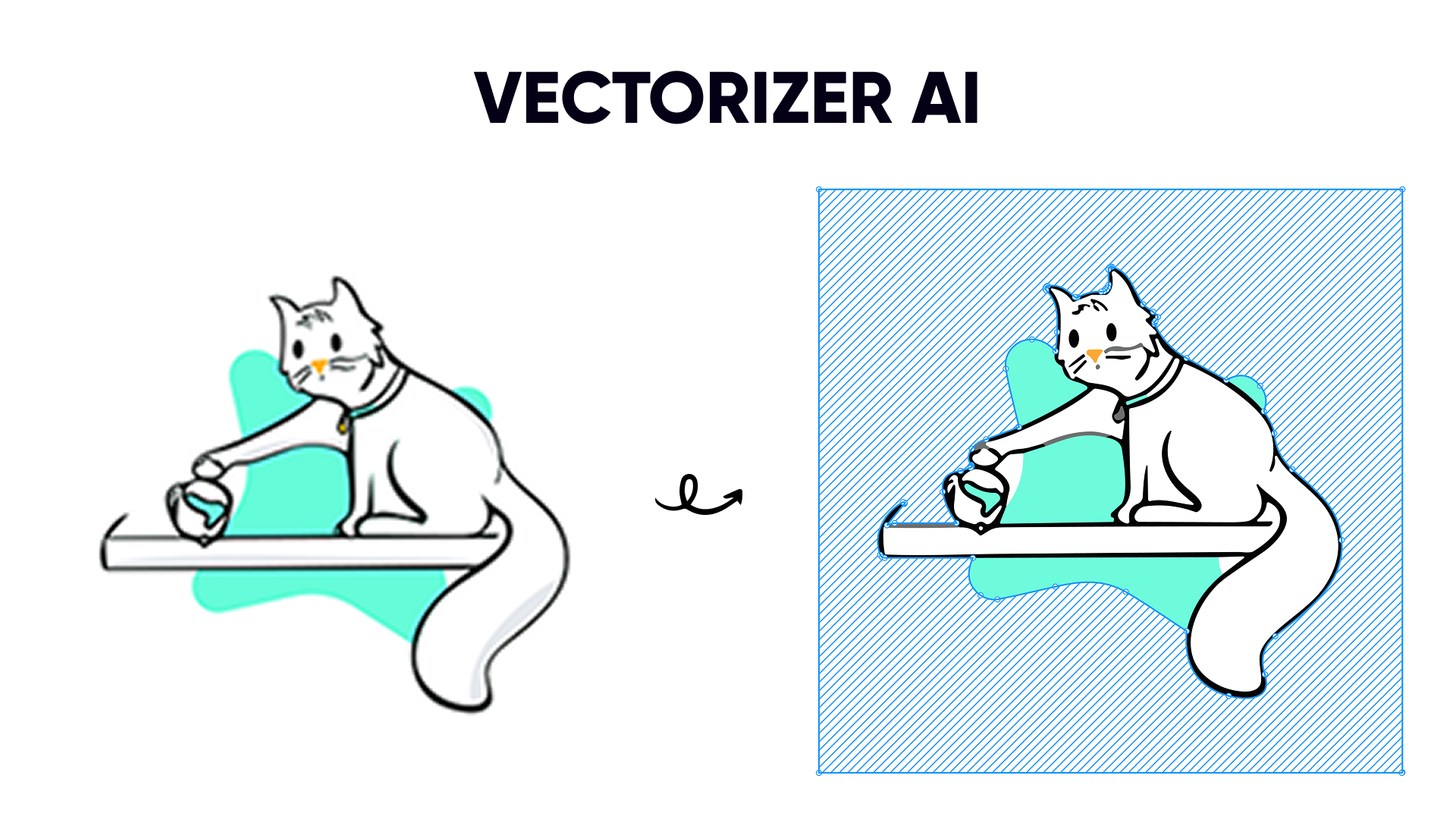 ## Turn Any Image into Perfect Vectors
Vectorized (AI Vectorizer) - Image Tracer uses advanced AI technology to convert photos, logos, and illustrations into crisp, editable SVG vectors—without ever leaving Figma.
One-click optimization for logos, illustrations, line art, and complex artwork
See results before spending credits with HD preview mode (only 2 credits)
Fine-tune quality, detail, colors, and style for pixel-perfect results
***
## Get Started in Minutes
Add Vectorized (AI Vectorizer) - Image Tracer from the Figma Community in seconds
Choose any raster image (PNG, JPG) in your Figma design
Pick a smart preset or customize settings, then convert to SVG
Complete your first vectorization in 5 minutes →
***
## Why Vectorize Your Images?
Vector graphics remain perfectly crisp at any size—from tiny mobile icons to massive billboard prints. No more pixelation when you zoom in or scale up. Perfect for responsive designs, multi-device support, and high-resolution displays.
**Use cases**: Logo systems, icon libraries, scalable UI components, print materials
Once converted, your SVG becomes a native Figma vector. Modify colors, adjust shapes, edit paths, and apply Boolean operations—all with Figma's powerful vector editing tools. No need to go back to the original bitmap.
**Unlock**: Color customization, shape modification, component creation, design system integration
SVG files are typically 5-10x smaller than PNG equivalents, leading to faster page loads, reduced bandwidth usage, and better performance across your designs and websites.
**Benefits**: Faster prototypes, quicker exports, improved web performance, lower storage costs
Vectorized assets integrate seamlessly into your component libraries. Create color variants, swap instances, and maintain consistency across your entire design system.
**Perfect for**: Component libraries, design tokens, brand assets, reusable UI elements
SVGs support alt text, can be indexed by search engines, and scale perfectly for users with visual impairments who need to zoom in. Better for everyone.
**Advantages**: Screen reader support, searchable content, responsive accessibility, semantic markup
***
## Powered by Industry-Leading Technology
Built on the [**Vectorizer.ai**](https://vectorizer.ai) API. Get enterprise-quality vectorization with Figma-native convenience.
Flexible credit packages starting at just \$4
Real-world use cases and pro tips
***
## Perfect For Every Use Case
**Convert client assets, stock images, and hand-drawn sketches into editable vectors**
* Clean up low-resolution logos
* Vectorize illustration references
* Transform scanned sketches
* Create scalable icon sets
**Build consistent design systems with vectorized brand assets**
* Standardize logo variations
* Create responsive components
* Build scalable UI libraries
* Maintain brand consistency
**Optimize assets for web and mobile with lightweight SVGs**
* Reduce bundle sizes
* Improve page load times
* Enable programmatic styling
* Support dark mode easily
**Deliver client work faster with automated vectorization**
* Revive legacy brand assets
* Prepare files for print
* Create presentation graphics
* Scale illustrations efficiently
***
***
## Ready to Get Started?
Add Vectorized (AI Vectorizer) to your workspace now
Follow our step-by-step installation guide
**New to vectorization?** No problem! Our [Quick Start Guide](/getting-started/quick-start) walks you through your first conversion in just 5 minutes.
***
## Frequently Asked Questions
Vectorized uses a credit-based system. Preview costs 2 credits, full conversion costs 10 credits. Credit packs start at \$4 for 100 credits (\~10 conversions). No subscription required. [View pricing details →](/support/credits-pricing)
Absolutely. We never store your design files. Images are sent to Vectorizer.ai for processing and immediately deleted after conversion. No training on your data, no third-party sharing. [Read privacy policy →](/legal/privacy-policy)
The plugin works with any Figma node containing an image fill, including PNG and JPG formats. Works with imported images, pasted screenshots, and drag-and-dropped files.
Yes! Install the plugin for free and explore all the settings. You'll need credits to perform actual conversions, but you can see the interface and select presets. We recommend starting with the Starter Pack (\$4 for 100 credits) to test on a few images.
Use the HD Preview feature (only 2 credits) to test settings before the full conversion. You can adjust presets and parameters, preview again, and only convert when you're satisfied. [Learn optimization tips →](/user-guide/best-practices)
***
Visit our comprehensive FAQ and troubleshooting guide
## Turn Any Image into Perfect Vectors
Vectorized (AI Vectorizer) - Image Tracer uses advanced AI technology to convert photos, logos, and illustrations into crisp, editable SVG vectors—without ever leaving Figma.
One-click optimization for logos, illustrations, line art, and complex artwork
See results before spending credits with HD preview mode (only 2 credits)
Fine-tune quality, detail, colors, and style for pixel-perfect results
***
## Get Started in Minutes
Add Vectorized (AI Vectorizer) - Image Tracer from the Figma Community in seconds
Choose any raster image (PNG, JPG) in your Figma design
Pick a smart preset or customize settings, then convert to SVG
Complete your first vectorization in 5 minutes →
***
## Why Vectorize Your Images?
Vector graphics remain perfectly crisp at any size—from tiny mobile icons to massive billboard prints. No more pixelation when you zoom in or scale up. Perfect for responsive designs, multi-device support, and high-resolution displays.
**Use cases**: Logo systems, icon libraries, scalable UI components, print materials
Once converted, your SVG becomes a native Figma vector. Modify colors, adjust shapes, edit paths, and apply Boolean operations—all with Figma's powerful vector editing tools. No need to go back to the original bitmap.
**Unlock**: Color customization, shape modification, component creation, design system integration
SVG files are typically 5-10x smaller than PNG equivalents, leading to faster page loads, reduced bandwidth usage, and better performance across your designs and websites.
**Benefits**: Faster prototypes, quicker exports, improved web performance, lower storage costs
Vectorized assets integrate seamlessly into your component libraries. Create color variants, swap instances, and maintain consistency across your entire design system.
**Perfect for**: Component libraries, design tokens, brand assets, reusable UI elements
SVGs support alt text, can be indexed by search engines, and scale perfectly for users with visual impairments who need to zoom in. Better for everyone.
**Advantages**: Screen reader support, searchable content, responsive accessibility, semantic markup
***
## Powered by Industry-Leading Technology
Built on the [**Vectorizer.ai**](https://vectorizer.ai) API. Get enterprise-quality vectorization with Figma-native convenience.
Flexible credit packages starting at just \$4
Real-world use cases and pro tips
***
## Perfect For Every Use Case
**Convert client assets, stock images, and hand-drawn sketches into editable vectors**
* Clean up low-resolution logos
* Vectorize illustration references
* Transform scanned sketches
* Create scalable icon sets
**Build consistent design systems with vectorized brand assets**
* Standardize logo variations
* Create responsive components
* Build scalable UI libraries
* Maintain brand consistency
**Optimize assets for web and mobile with lightweight SVGs**
* Reduce bundle sizes
* Improve page load times
* Enable programmatic styling
* Support dark mode easily
**Deliver client work faster with automated vectorization**
* Revive legacy brand assets
* Prepare files for print
* Create presentation graphics
* Scale illustrations efficiently
***
***
## Ready to Get Started?
Add Vectorized (AI Vectorizer) to your workspace now
Follow our step-by-step installation guide
**New to vectorization?** No problem! Our [Quick Start Guide](/getting-started/quick-start) walks you through your first conversion in just 5 minutes.
***
## Frequently Asked Questions
Vectorized uses a credit-based system. Preview costs 2 credits, full conversion costs 10 credits. Credit packs start at \$4 for 100 credits (\~10 conversions). No subscription required. [View pricing details →](/support/credits-pricing)
Absolutely. We never store your design files. Images are sent to Vectorizer.ai for processing and immediately deleted after conversion. No training on your data, no third-party sharing. [Read privacy policy →](/legal/privacy-policy)
The plugin works with any Figma node containing an image fill, including PNG and JPG formats. Works with imported images, pasted screenshots, and drag-and-dropped files.
Yes! Install the plugin for free and explore all the settings. You'll need credits to perform actual conversions, but you can see the interface and select presets. We recommend starting with the Starter Pack (\$4 for 100 credits) to test on a few images.
Use the HD Preview feature (only 2 credits) to test settings before the full conversion. You can adjust presets and parameters, preview again, and only convert when you're satisfied. [Learn optimization tips →](/user-guide/best-practices)
***
Visit our comprehensive FAQ and troubleshooting guide