> ## Documentation Index
> Fetch the complete documentation index at: https://vector.storyship.studio/llms.txt
> Use this file to discover all available pages before exploring further.
# Installation & Setup
> Get Vectorized (AI Vectorizer) - Image Tracer up and running in minutes. Step-by-step installation guide for Figma Desktop and Browser.
## Install the Plugin
Get Vectorized (AI Vectorizer) - Image Tracer installed and ready to use in just a few clicks.
Click the button below to install directly from Figma Community:
Open in Figma Community →
This will open Figma and take you directly to the plugin page.
**Option 1: Using Resources Panel**
1. Open any Figma file
2. Press `Shift + I` (or click **Resources** in the toolbar)
3. Click the **Plugins** tab
4. Search for **"Vectorized (AI Vectorizer) - Image Tracer"** or **"Vectorized"**
5. Click **Install** next to the plugin
**Option 2: Using Figma Community**
1. Go to [figma.com/community](https://figma.com/community)
2. Search for **"Vectorized (AI Vectorizer) - Image Tracer"** or **"Vectorized"** in the search bar
3. Click on the plugin from results
4. Click the **Install** button
After installation, run the plugin using any of these methods:
1. Press `Shift + I` or click **Resources** in the toolbar
2. Go to the **Plugins** tab
3. Find **Vectorized (AI Vectorizer) - Image Tracer** in your saved plugins
4. Click to run
**Pro tip**: Right-click the plugin and select **"Run"** to launch it without opening the Resources panel each time.
1. Press `Cmd + /` (Mac) or `Ctrl + /` (Windows) to open Quick Actions
2. Type **"Vectorized (AI Vectorizer) - Image Tracer"**
3. Press `Enter` when the plugin appears
This is the fastest way to launch after your first use!
1. **Right-click** on any image in your canvas
2. Hover over **Plugins**
3. Select **Vectorized (AI Vectorizer) - Image Tracer** from the submenu
Great for when you're already working with an image!
1. Click **Plugins** in the top menu
2. Select **Vectorized (AI Vectorizer) - Image Tracer** from the dropdown
Available in both Desktop and Browser versions.
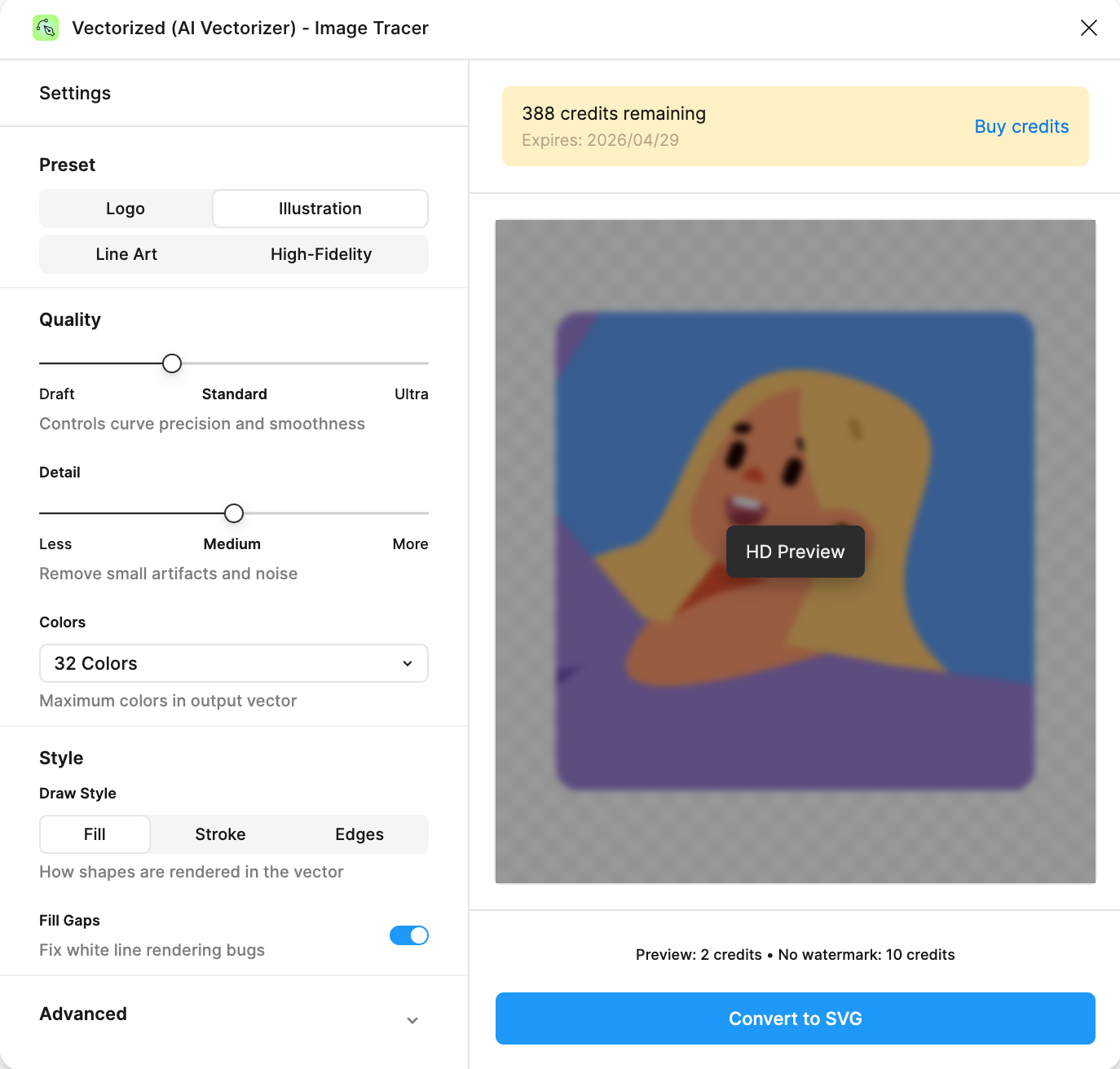
When the plugin launches successfully, you should see:
✓ Plugin panel opens on the right side of Figma
✓ **Settings** panel visible on the left with preset options
✓ **Credit balance** displayed at the top (shows 0 if you haven't purchased yet)
✓ **Canvas preview area** in the center
✓ **Convert to SVG** button at the bottom
 **Not seeing the interface?**
* Check your internet connection (plugin requires online access)
* Try refreshing Figma (`Cmd/Ctrl + R`)
* Make sure you're using a supported Figma version (see requirements below)
* Restart Figma and try again
**First time user?** You start with **0 credits**. Don't worry—you can still explore the interface and test all settings. When you're ready to convert, purchase credits from the plugin. [View pricing →](/support/credits-pricing)
***
## System Requirements
**Recommended for best performance**
* **macOS**: 10.15 (Catalina) or later
* **Windows**: Windows 10 or later
* **Linux**: Ubuntu 18.04+ or equivalent
✓ Faster processing
✓ More stable connection
✓ Better for large images
**Works in modern web browsers**
* **Chrome/Edge**: Version 90 or later
* **Safari**: Version 14 or later
* **Firefox**: Version 88 or later
✓ No installation needed
✓ Works on any OS
✓ Always up-to-date
**Internet connection required**
Vectorized communicates with the Vectorizer.ai API to process your images. An active internet connection is necessary for all conversions and previews.
***
## Permissions Explained
The plugin requests the following permissions to function properly:
| Permission | Why We Need It | What We Access |
| -------------------------- | -------------------------------------------------------------------------- | ----------------------------------------------------------- |
| 📄 **Current page access** | To read selected images and place converted SVGs back into your design | Only the currently selected image node and its properties |
| 🌐 **Network access** | To send images to Vectorizer.ai API for processing and receive SVG results | Communication with our secure backend API only |
| 👤 **User information** | To manage your credit balance and track usage | Only your Figma user ID and name (no personal/payment data) |
**Your privacy matters**
We take data privacy seriously:
* ✓ We **never store** your design files or images
* ✓ Images are **immediately deleted** after conversion
* ✓ We **do not** use your images for AI training
* ✓ No personal data is collected beyond Figma user ID
* ✓ All communication is encrypted (HTTPS)
[Read our full Privacy Policy →](/legal/privacy-policy)
***
## Understanding Credit Balance
After installation, you'll see your credit balance displayed at the top of the plugin:
**10+ credits remaining**
You have enough credits for full conversions. Each conversion costs:
* **HD Preview**: 2 credits (with watermark)
* **Convert to SVG**: 10 credits (no watermark)
**2-9 credits remaining**
You can still use HD Preview, but may not have enough for full conversions. Consider purchasing more credits.
**0-1 credits remaining**
You'll need to purchase credits to use the plugin. Don't worry—it only takes a minute!
View pricing and purchase credits →
### Credit Expiration
**Credits expire after 6 months**
* You'll see warnings 7 days and 3 days before expiration
* Purchasing new credits **resets the expiration date** for all credits
* Expired credits cannot be recovered
* Use it or lose it!
***
## Troubleshooting Installation
**Possible causes:**
* Plugin wasn't installed successfully
* You're looking in the wrong Figma account
* Browser/Desktop cache issue
**Solutions:**
1. Try installing again using the [direct link](https://www.figma.com/community/plugin/1528574912559745892/vectorized-ai-vectorizer-image-tracer)
2. Check if you're signed into the correct Figma account
3. Clear browser cache (Browser version) or restart Figma (Desktop version)
4. Check Figma Community to verify installation status
**Possible causes:**
* No internet connection
* Firewall/VPN blocking the plugin
* Outdated Figma version
**Solutions:**
1. **Check internet connection** - Plugin requires online access
2. **Disable VPN/proxy** temporarily to test
3. **Update Figma** to the latest version
4. **Restart Figma** completely (quit and reopen)
5. Try in a **different browser** (if using Browser version)
**What this means:**
The plugin needs certain permissions to function, but they weren't granted during installation.
**Solution:**
1. **Uninstall** the plugin:
* Go to Resources (`Shift + I`) → Plugins
* Right-click on Vectorized (AI Vectorizer) - Image Tracer
* Select "Remove plugin"
2. **Reinstall** using the direct link
3. **Accept all permissions** when prompted
**Try these locations:**
1. **Resources Panel** (`Shift + I`) → Plugins tab
2. **Quick Actions** (`Cmd/Ctrl + /`) → Type "Vec"
3. **Menu Bar** → Plugins → Vectorized (AI Vectorizer) - Image Tracer
4. **Right-click** any image → Plugins → Vectorized (AI Vectorizer) - Image Tracer
If still not found, reinstall the plugin.
**This is normal behavior**
Plugins installed on Desktop aren't automatically available in Browser, and vice versa. You need to:
* **Install separately** in each environment
* Use the same Figma account
* Credits are shared across both versions
Visit our comprehensive troubleshooting guide or contact support →
***
## Next Steps
Congratulations! Vectorized (AI Vectorizer) - Image Tracer is now installed and ready to use.
Complete your first conversion in 5 minutes
Purchase credits to start vectorizing
Learn about Logo, Illustration, Line Art, and High-Fidelity modes
**Recommended path for new users:**
1. ✓ Installation complete (you are here!)
2. → [Purchase credits](/support/credits-pricing) (start with \$4 Starter Pack)
3. → [Quick Start Guide](/getting-started/quick-start) (your first conversion)
4. → [Understanding Presets](/user-guide/understanding-presets) (optimize results)
**Not seeing the interface?**
* Check your internet connection (plugin requires online access)
* Try refreshing Figma (`Cmd/Ctrl + R`)
* Make sure you're using a supported Figma version (see requirements below)
* Restart Figma and try again
**First time user?** You start with **0 credits**. Don't worry—you can still explore the interface and test all settings. When you're ready to convert, purchase credits from the plugin. [View pricing →](/support/credits-pricing)
***
## System Requirements
**Recommended for best performance**
* **macOS**: 10.15 (Catalina) or later
* **Windows**: Windows 10 or later
* **Linux**: Ubuntu 18.04+ or equivalent
✓ Faster processing
✓ More stable connection
✓ Better for large images
**Works in modern web browsers**
* **Chrome/Edge**: Version 90 or later
* **Safari**: Version 14 or later
* **Firefox**: Version 88 or later
✓ No installation needed
✓ Works on any OS
✓ Always up-to-date
**Internet connection required**
Vectorized communicates with the Vectorizer.ai API to process your images. An active internet connection is necessary for all conversions and previews.
***
## Permissions Explained
The plugin requests the following permissions to function properly:
| Permission | Why We Need It | What We Access |
| -------------------------- | -------------------------------------------------------------------------- | ----------------------------------------------------------- |
| 📄 **Current page access** | To read selected images and place converted SVGs back into your design | Only the currently selected image node and its properties |
| 🌐 **Network access** | To send images to Vectorizer.ai API for processing and receive SVG results | Communication with our secure backend API only |
| 👤 **User information** | To manage your credit balance and track usage | Only your Figma user ID and name (no personal/payment data) |
**Your privacy matters**
We take data privacy seriously:
* ✓ We **never store** your design files or images
* ✓ Images are **immediately deleted** after conversion
* ✓ We **do not** use your images for AI training
* ✓ No personal data is collected beyond Figma user ID
* ✓ All communication is encrypted (HTTPS)
[Read our full Privacy Policy →](/legal/privacy-policy)
***
## Understanding Credit Balance
After installation, you'll see your credit balance displayed at the top of the plugin:
**10+ credits remaining**
You have enough credits for full conversions. Each conversion costs:
* **HD Preview**: 2 credits (with watermark)
* **Convert to SVG**: 10 credits (no watermark)
**2-9 credits remaining**
You can still use HD Preview, but may not have enough for full conversions. Consider purchasing more credits.
**0-1 credits remaining**
You'll need to purchase credits to use the plugin. Don't worry—it only takes a minute!
View pricing and purchase credits →
### Credit Expiration
**Credits expire after 6 months**
* You'll see warnings 7 days and 3 days before expiration
* Purchasing new credits **resets the expiration date** for all credits
* Expired credits cannot be recovered
* Use it or lose it!
***
## Troubleshooting Installation
**Possible causes:**
* Plugin wasn't installed successfully
* You're looking in the wrong Figma account
* Browser/Desktop cache issue
**Solutions:**
1. Try installing again using the [direct link](https://www.figma.com/community/plugin/1528574912559745892/vectorized-ai-vectorizer-image-tracer)
2. Check if you're signed into the correct Figma account
3. Clear browser cache (Browser version) or restart Figma (Desktop version)
4. Check Figma Community to verify installation status
**Possible causes:**
* No internet connection
* Firewall/VPN blocking the plugin
* Outdated Figma version
**Solutions:**
1. **Check internet connection** - Plugin requires online access
2. **Disable VPN/proxy** temporarily to test
3. **Update Figma** to the latest version
4. **Restart Figma** completely (quit and reopen)
5. Try in a **different browser** (if using Browser version)
**What this means:**
The plugin needs certain permissions to function, but they weren't granted during installation.
**Solution:**
1. **Uninstall** the plugin:
* Go to Resources (`Shift + I`) → Plugins
* Right-click on Vectorized (AI Vectorizer) - Image Tracer
* Select "Remove plugin"
2. **Reinstall** using the direct link
3. **Accept all permissions** when prompted
**Try these locations:**
1. **Resources Panel** (`Shift + I`) → Plugins tab
2. **Quick Actions** (`Cmd/Ctrl + /`) → Type "Vec"
3. **Menu Bar** → Plugins → Vectorized (AI Vectorizer) - Image Tracer
4. **Right-click** any image → Plugins → Vectorized (AI Vectorizer) - Image Tracer
If still not found, reinstall the plugin.
**This is normal behavior**
Plugins installed on Desktop aren't automatically available in Browser, and vice versa. You need to:
* **Install separately** in each environment
* Use the same Figma account
* Credits are shared across both versions
Visit our comprehensive troubleshooting guide or contact support →
***
## Next Steps
Congratulations! Vectorized (AI Vectorizer) - Image Tracer is now installed and ready to use.
Complete your first conversion in 5 minutes
Purchase credits to start vectorizing
Learn about Logo, Illustration, Line Art, and High-Fidelity modes
**Recommended path for new users:**
1. ✓ Installation complete (you are here!)
2. → [Purchase credits](/support/credits-pricing) (start with \$4 Starter Pack)
3. → [Quick Start Guide](/getting-started/quick-start) (your first conversion)
4. → [Understanding Presets](/user-guide/understanding-presets) (optimize results)